Image Clicker by MurGee.com — Complete User Guide, Feature Reference & FAQ
An enterprise-grade Windows automation utility combining fast on-screen graphic template recognition, adjustable color tolerance, capacitive touchscreen tap simulation, background voice notifications, and high-visibility visual countdown overlays.
Automate Actions Based on Visual Screen Events
Designed for power users, QA testing engineers, gamers, and office professionals seeking reliable visual automation.
3-Point Smart Scan Filter
Discards over 99% of mismatched screen areas immediately by checking three anchor points (top-left, center, and bottom-right) before checking the entire image, keeping your computer responsive and fast.
Adjustable Color Tolerance
Set an allowable color variance between 0 and 255 to accommodate dynamic game lighting, slight monitor color rendering differences, and font anti-aliasing without missing targets.
Ghost Touch Simulation
Sends real capacitive touchscreen tap events directly to target buttons and games without moving your real mouse pointer, allowing you to keep typing and working without interruption.
Multi-Monitor Screen Selector
Choose exactly where to search across any monitor or multi-display setup. Dragging your mouse creates a clean, clear window through a dimmed background to precisely outline your target area.
Spoken Voice Alerts
Hear instant voice speech notifications whenever a target image appears or disappears. Audio synthesis runs independently in the background so your games and apps never freeze or stutter.
Visual Countdown Overlay
A bright translucent yellow box with a bold 4-pixel red border highlights the exact match location on screen. It features a prominent live countdown timer showing remaining display time.
External Program & Script Trigger
Automatically launch any external application, batch file, Python script, or PowerShell command as soon as an image is matched, with an integrated Test button to verify commands beforehand.
Conflict-Free Global Hotkeys
Control your search with quick keyboard shortcuts (F6 through F12). If another program is already using a hotkey, Image Clicker automatically picks the next available key so it always works.
Save & Load Profiles (.MurGeeImageClickerDataFile)
Save complete configurations — screen coordinates, tolerance values, delay timings, sound toggles, and target folders — into reusable preset files with the .MurGeeImageClickerDataFile extension to reload your favorite settings anytime.
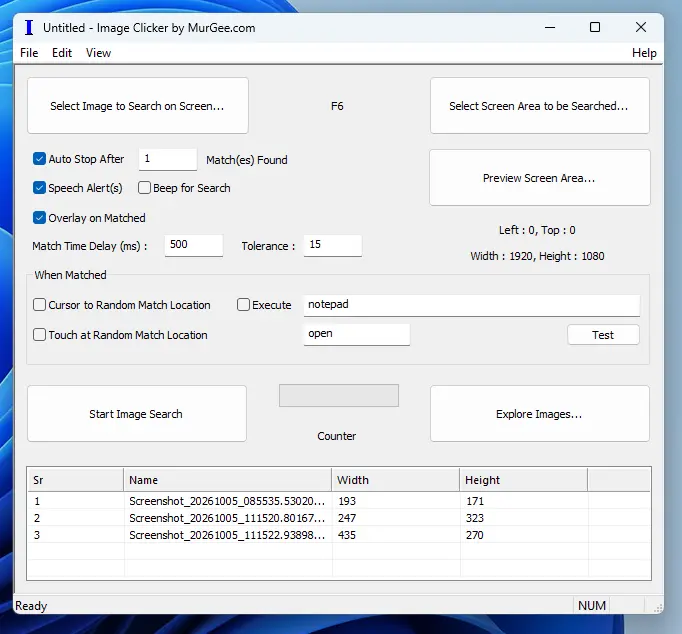
Main Interface & Control Guide
An interactive overview of every button, slider, and setting found on the main control panel.
| Image File | Dimensions |
|---|---|
| claim_reward_button.bmp | 120 × 44 |
| next_level_arrow.bmp | 38 × 38 |
| dialog_ok.bmp | 85 × 28 |
How the Intelligent Automation Engine Works
A plain-English breakdown of the visual matching process, touch simulation, and notification pipeline.
1. High-Speed 3-Point Image Matching
Rather than wastefully scanning millions of pixels across your monitor for every search cycle, Image Clicker uses a fast smart-verification process:
-
1
Anchor 1 (Top-Left): The engine inspects the candidate location's very first pixel. If the color does not match within your tolerance, the area is skipped immediately.
-
2
Anchor 2 (Center Midpoint): If the top-left matches, it checks the center pixel of the target graphic.
-
3
Anchor 3 (Bottom-Right): It checks the opposite corner pixel. Over 99% of mismatched areas are rejected in just three fast checks.
-
4
Full Matrix Confirmation: Only when all three anchor points pass does the engine confirm the remaining interior pixels, guaranteeing high accuracy with low CPU usage.
2. Ghost Touch Tap Without Mouse Disruption
Standard clickers take control of your mouse cursor, interrupting your work. Image Clicker's touch simulation operates seamlessly:
-
1
Memory Snapshot: The tool instantly records where your real mouse cursor is resting on your desktop.
-
2
Hardware Touch Injection: It sends a genuine capacitive touch contact event to the matched button location with standard touch pressure.
-
3
Immediate Cursor Restoration: Your physical cursor is immediately placed back at its original location in a fraction of a millisecond.
-
4
Seamless Multitasking: You can continue reading, editing documents, or browsing the web while background tasks are automated.
Performance & Feature Comparison
| Feature | Basic Auto Clickers | Image Clicker by MurGee.com | User Advantage |
|---|---|---|---|
| Screen Scanning | Full 4K monitor screenshot every frame | Target sub-region memory scan | Significantly lower CPU and RAM usage |
| Negative Pattern Rejection | Checks all pixels one by one | 3-Point smart anchor check | Instant rejection of non-matching areas |
| Click Method | Displaces your physical mouse pointer | Ghost touch simulation | Work and browse while clicks happen in the background |
| Voice Notifications | Freezes interface while speaking | Smooth background voice synthesis | Zero lag or frame drops during gameplay |
| Visual Overlay | None or fixed tiny text box | Dynamic auto-scaling countdown box | Crystal-clear visibility on any size target |
Live Tolerance & Visual Overlay Playground
Experience how Image Clicker handles color tolerance and dynamically scales visual countdown timers.
Frequently Asked Questions
Clear answers to questions regarding features, gaming, multi-monitor setups, performance, and best practices.
Image Clicker is a Windows automation program developed by Daanav Softwares. Instead of clicking fixed screen coordinates blindly, it continuously monitors your computer screen (or a specific region of it) for specific target images. Whenever that image appears — such as a button, notification, game reward, or icon — it automatically carries out your chosen actions, like moving your mouse, performing a touchscreen tap, speaking an alert, or launching external programs.
Image Clicker examines your designated search area for the graphic you selected. To keep your PC fast and responsive, it uses a 3-point verification process: it immediately inspects the top-left, center, and bottom-right points of candidate regions. If these key points don't match your template image within your chosen color tolerance, it immediately moves to the next pixel without wasting CPU time. Only areas passing all three checks undergo full image confirmation.
Tolerance controls how much color difference is allowed between your saved template image and what is currently displayed on screen. A tolerance of 0 requires an exact color match. A default setting of 10 to 20 accommodates subtle display variations like Windows font smoothing, ClearType, and video streaming compression. For 3D video games with shifting lighting or shadows, values between 25 and 40 are recommended.
The program natively supports 24-bit and 32-bit Windows Bitmap files (.BMP). If you take screenshots using the Windows Snipping Tool or have images in PNG or JPEG format, simply open them in Paint and save them as a 24-bit or 32-bit Bitmap into your Image Clicker folder.
Cursor to Location: Moves your real Windows desktop mouse pointer directly to the detected image's coordinates.
Touch at Location: Uses Windows touchscreen simulation to trigger an authentic capacitive tap at the matched coordinates. This allows touch-enabled applications and games to respond directly to touch inputs without disturbing standard mouse controls.
Yes! When using "Touch at Random Match Location", Image Clicker remembers where your mouse cursor is currently located, injects the touch tap at the target graphic, and immediately restores your mouse cursor to where you left it. You can continue typing, working, or browsing without your cursor being hijacked!
Yes. The screen selector spans across all monitors connected to your PC, whether you have 2, 3, or more displays, including secondary monitors positioned to the left, right, or above your main screen.
Click "Select Screen Area to be Searched...". Your screen will dim slightly with a crosshair cursor. Simply click and drag a rectangular box over the area you want to monitor. The selected area will stay completely clear, giving you a live preview of your chosen search box. You can press ESC anytime to cancel.
When this feature is checked, finding a match displays a bright yellow highlight box with a bold red border directly over the detected image. It displays a live countdown timer showing how many seconds remain before the overlay closes, giving you instant visual feedback on what was detected.
Yes. While the overlay box is showing, simply tap the ESC key on your keyboard to dismiss it immediately without waiting for the timer to finish.
Image Clicker uses modern Windows Speech Synthesis that runs completely in the background on a separate operating system thread. This prevents the automation loop or your active video games from freezing or stuttering while speech is playing.
Image Clicker checks function keys starting with F6, and automatically tests through F12. If another program (like a game or screen recorder) is already using F6, Image Clicker automatically chooses the next free function key and shows it on the interface. This ensures you can always start and stop searching even while inside a full-screen game.
Yes. Check the "Execute" box in the "When Matched" section and specify the file path to any program, Python script, or batch file (for example, notepad.exe or a custom automated script). You can use the built-in "Test" button to verify the program launches properly.
The .MurGeeImageClickerDataFile file format is Image Clicker's configuration preset format. When you choose File → Save, your entire setup — including search coordinates, tolerance, match delays, sound options, and target folders — is saved into a .MurGeeImageClickerDataFile file so you can quickly reload your configuration later.
You can download Image Clicker directly from the official website at https://imageclicker.click/download/ImageClickerSetup.exe. The installer executable is digitally signed, ensuring publisher authenticity, file integrity, and a safe, warning-free installation on Windows 11 and Windows 10.
Yes. For best results, set your game's display mode to Borderless Windowed or Windowed Fullscreen. This allows Image Clicker to capture screen frames reliably and show the visual highlight overlay without interference from exclusive full-screen mode.
Check these common solutions:
- Search Area: Click "Preview Screen Area" to confirm the target image is appearing inside your defined search boundaries.
- Increase Tolerance: If the game has lighting effects or shadows, raise Tolerance from 15 to 25–35.
- Crop Target Image Smaller: Crop out background art or moving particles, focusing strictly on the unique icon or text.
- Display Scaling: Ensure Windows display scaling (e.g. 100%, 125%, 150%) matches between when you captured the image and when you run the search.
The default delay is 500 ms (two scans per second), which uses virtually no CPU power. For fast-paced games where speed is essential, you can lower this to 50 ms or 100 ms. Scans take only a few milliseconds to complete on modern PCs.
No, you do not need to run as Administrator. Image Clicker works smoothly out of the box with your Windows applications and games without requiring you to manually right-click and "Run as Administrator".
Image Clicker is created and maintained by Daanav Softwares and distributed via MurGee.com. Customer support is available via email at Support@MurGee.com. Software updates and companion automation tools are available at www.MurGee.com.
Image Clicker is completely free to try with all features enabled. This webpage does not allow you to buy the full version, and no payment is taken on this website. After your free trial is over, you are expected to pay USD 8.76 for using the software on 1 computer for up to 6 months. You can download and install the free trial at https://imageclicker.click/download/ImageClickerSetup.exe. The setup installer is digitally signed, ensuring file authenticity and trusted installation. Once your trial concludes, the software provides a simple, direct payment option to continue using it on that computer.